Product walkthrough
Instagram profile to website: an OnShow walkthrough
Start with your public Instagram handle. OnShow builds a private preview from the available content. Review and edit it, choose a plan and confirm permission at checkout. After payment, choose your address and publish.
Before you start: check the source
Use the public Instagram profile that represents your business. Check that it has photographs of your work and an introduction that describes what you do. A private profile cannot supply the publicly visible content the preview needs.
Have your current service details, prices and booking or contact link to hand. Instagram gives OnShow a starting point; you still need to check the result and add anything missing. You do not need to share your Instagram password.
1. Paste your handle or profile link
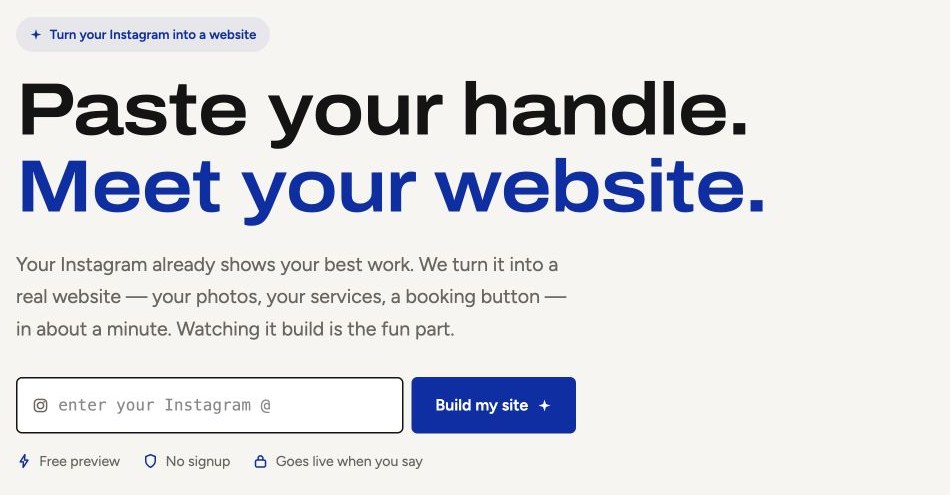
Enter your Instagram handle or the full link to your profile in the field on OnShow, then choose “Build my site”. The preview is free, with no payment card or signup required to start.
OnShow reads the available public photos and business information and builds a website preview. The product aims to produce it in about a minute, but timing can vary. Follow the progress and any instructions shown on screen.
2. Review the website as a customer would
The result is a private website preview, not a published site. An unpaid preview lasts 14 days. Keep the private link so you can come back to it, and check that the website presents the right kind of business.
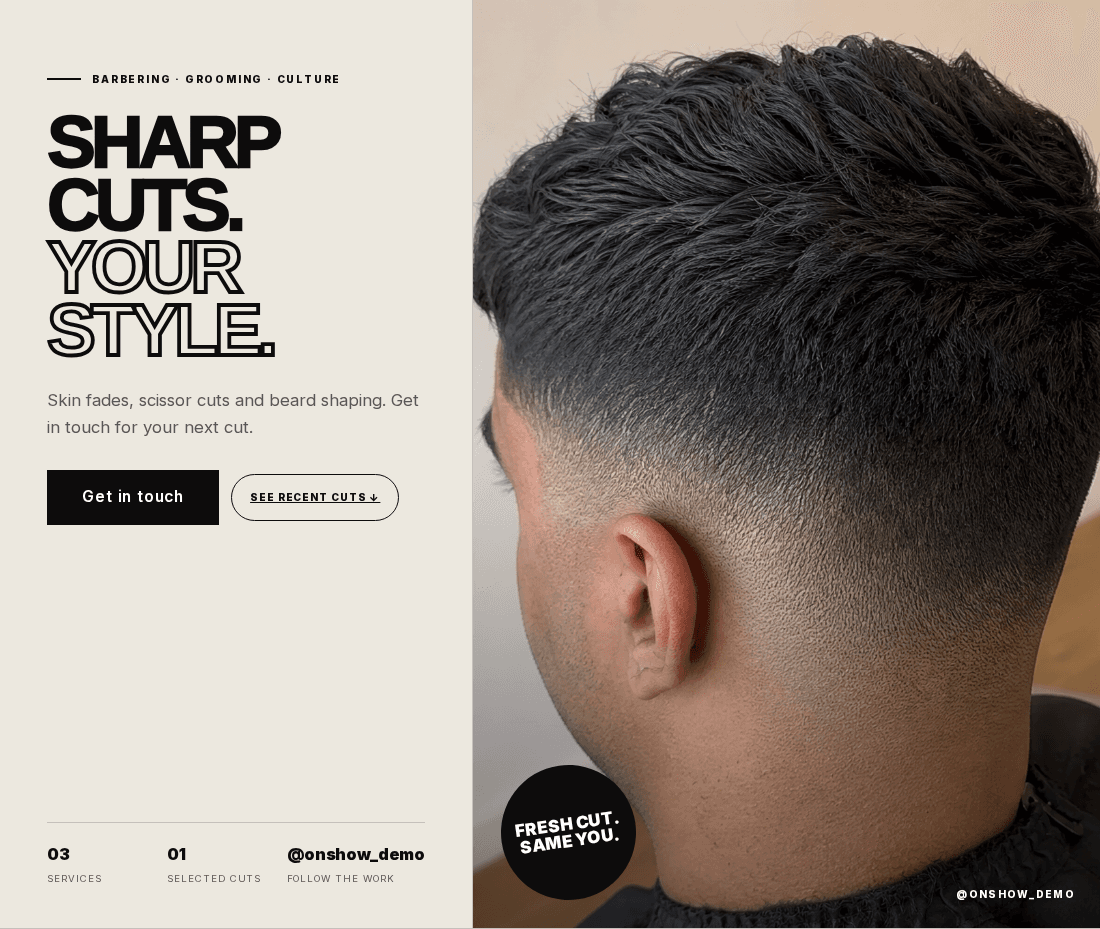
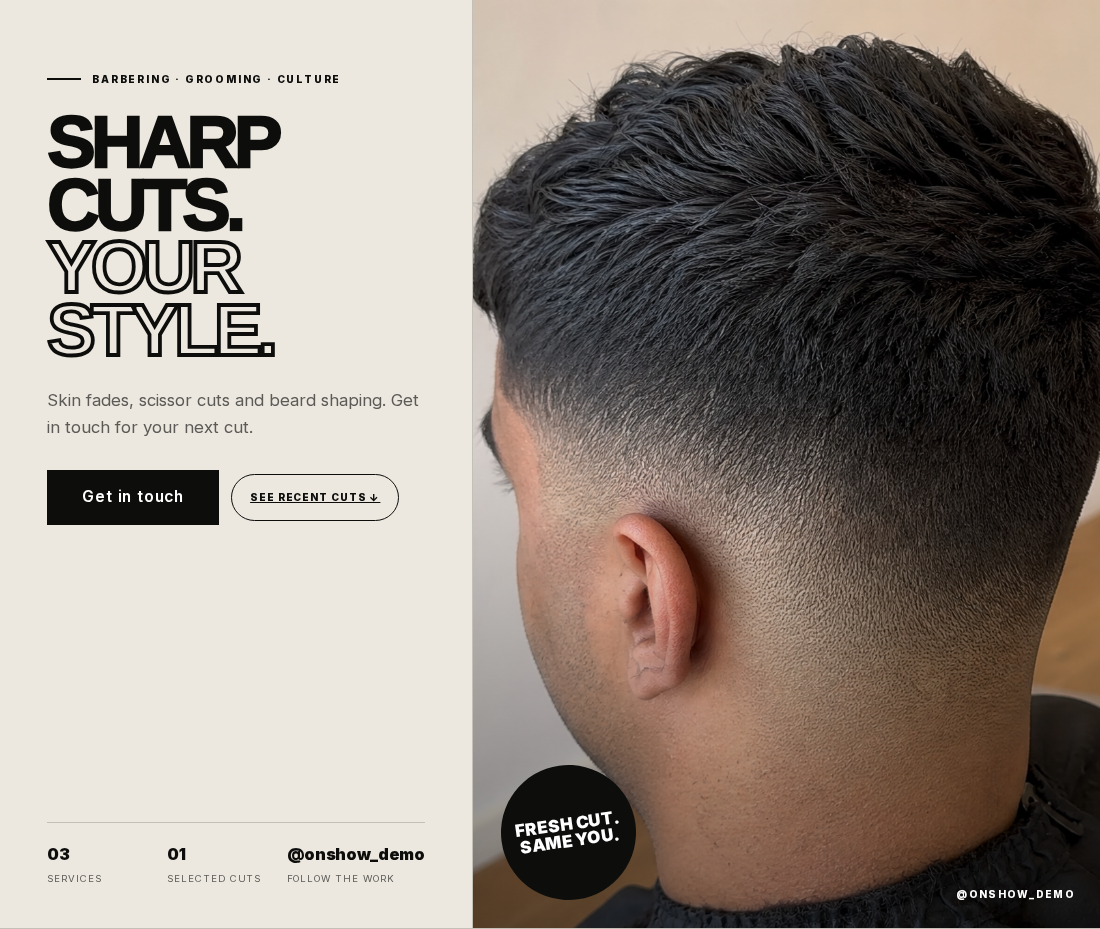
Look at the opening photograph, the introduction, selected work, services and contact route. The design and sections can vary with the business and the content available. This is a standalone website, rather than an embedded Instagram grid.
3. Make the details yours
Open the editor from your preview and work through the content. Correct the wording, check photos and framing, and review service names, prices and contact details. Add information that your Instagram profile did not provide.
Pay particular attention to the main button. If you take bookings through another service, use the correct booking link and check its destination. OnShow links visitors to that service; its calendar and appointment confirmation remain with your booking provider.
Photos and wording
Does the selection represent your work, and does the introduction sound like your business?
Services and prices
Are the names, descriptions and any prices complete and current?
Contact and mobile view
Can a visitor find you and take the next step easily on a phone?
4. Choose your plan and finish publishing
When you want your site live, choose a plan, confirm you own the business or have permission to publish its content, and pay once. Continue in the same browser to choose your web address and select Publish my site. No Instagram code or bio changes are needed.
Choose your website address and plan. Launch publishes at an OnShow address, while Pro lets you connect a domain you already own and removes the OnShow credit. Publishing is a one-off purchase with hosting and editor access included. Check the current plan comparison and the final currency and price at checkout before paying.
Returning on another device? Sign in with your purchase email, and check your inbox and junk or spam folder for the secure link. Nothing goes live until you select Publish my site. If setup remains unfinished after 14 days, we automatically refund your payment. Contact us if you need help.
5. Share your link and keep it current
Once your site is live, open the public address on your phone and check the main pages and contact links. Add the website link to your Instagram bio and use it wherever you introduce your business.
Keep using Instagram for new work and conversations. Your website is separate: new Instagram posts do not automatically appear on it. Use the editor when you want to change photographs, services, prices or contact details. Publishing also does not guarantee Google indexing or rankings.
Make it practical
Your checklist
- Use your public business Instagram profile.
- Review the private preview and correct missing details.
- Check image framing and the booking or contact link.
- Confirm permission to publish at checkout.
- Confirm your plan, currency and price before payment.
- Choose your address and select Publish my site.
- Check and share the live website address.
See it in context
From the guide to your kind of business.
Explore the design and the practical details, then try your own Instagram handle.
Explore Instagram to website